HST Data Handbook for WFPC2
 |
 |
 |
 |
 |
|
| HST Data Handbook for WFPC2 | ||||
|
3.2 Displaying HST Images
This section will be of interest primarily to observers whose datasets contain two-dimensional images, as it explains:
Observers viewing WF/PC-1 and WFPC2 data may wish to remove cosmic rays before displaying their data. The FOC photon-counting hardware does not detect cosmic rays at easily as CCDs, the NICMOS pipeline automatically removes cosmic rays from MULTIACCUM observations, and the STIS pipeline automatically removes cosmic rays from CR-SPLIT association products.
3.2.1 The display Task
The most general IRAF task for displaying image data is the display task, the best choice for a first look at HST imaging data. To display an image, you need to:
- Start an image display server, such as SAOimage, in a separate window from your IRAF session, either from a different xterm window or as a background job before starting IRAF. To start SAOimage, type the following:
saoimage &
- Load the images.tv package from the window where you're running IRAF:
cl> images
im> tv

Several different display servers, including SAOimage, ds9 (the next generation of SAOimage), and Ximtool, can be used with IRAF. ds9 may be retrieved from
http://hea-www.harvard.ed u/RD/ds9/. Ximtool may be retrieved fromftp://iraf.noao.edu/iraf/x11iraf/.
- Display the image with the IRAF display task, using the syntax appropriate for the file format (chapter 2 explains how to specify GEIS groups and FITS extensions):
tv> display fname.c0h[2] 1 (GEIS group 2)
tv> display fname.fits[11] 1 (FITS extension 11)
tv> display fname.fits[sci,3] 1 (FITS extension sci,3)
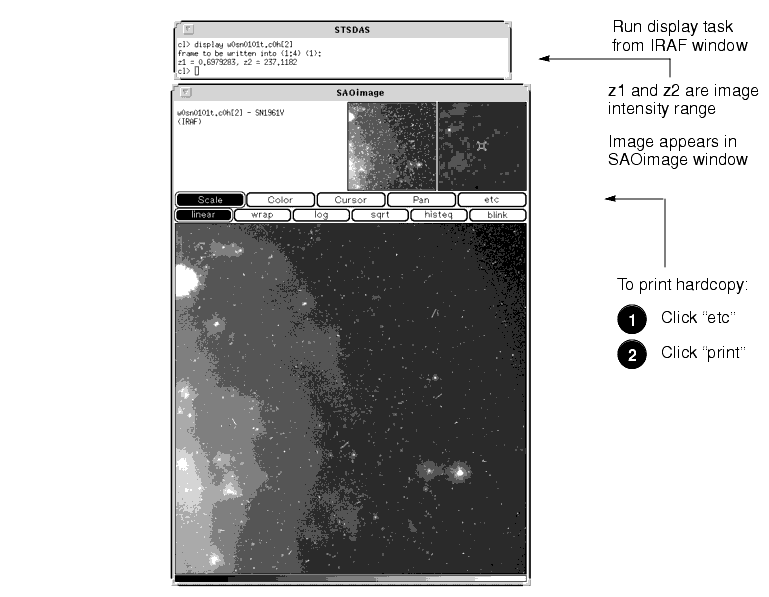
Note that when using display or any other task on GEIS images, you do not need to specify a group; the first group is the default. However, when working with FITS files you must specify an extension, unless the FITS file contains only a single image in the primary data unit and has no extensions. figure 3.2 shows how to display group two of a WF/PC-1 image.
Figure 3.2: Displaying an Image

If you want to display all four chips of a WF/PC-1 or WFPC2 image simultaneously, you can create a mosaic with the STSDAS wmosaic task in the hst_calib.wfpc package. Type help wmosaic for details.
Modifying the Display
There are two ways to adjust how your image is displayed:
- Use the SAOimage command buttons that control zooming, panning, etc.
- Reset the display task parameters.
Once an image appears in your SAOimage window, you can use the SAOimage commands displayed near the top of the image window to manipulate or print your image. The SAOimage Users Guide describes these commands, although most are fairly intuitive. Just click on the buttons to scale, pan, or print the image, or to perform other commonly-used functions. On-line help is also available at the system level: type
mansaoimagein Unix orhelpsaoimagein VMS.The example in figure 3.2 shows how you should display an image for a first look. By default, display automatically scales the image intensity using a sampling of pixels throughout the image. During your first look, you may want to experiment with the scaling using the
zscale,zrange,z1andz2parameters. Thezscaleparameter toggles the autoscaling. Settingzscale-andzrange+tells the task to use minimum and maximum values from the image as the minimum and maximum intensity values. To customize your minimum and maximum intensity display values, setzscale-,zrange-,z1to the minimum value andz2to the maximum value that you want displayed. For example:
im> disp w0mw0507v.c0h 1 zrange- zscale- z1=2.78 z2=15.27
Notice in figure 3.2 that when you run display, the task shows you the
z1andz2values that it calculates. You can use these starting points in estimating reasonable values for the minimum and maximum intensity display parameters.1If you want to display an image with greater dynamic range, you may prefer to use logarithmic scaling. However, the log scaling function in SAOimage divides the selected intensity range into 200 linearly spaced levels before taking the log. The resulting intensity levels are rendered in a linear rather than logarithmic sense. You can often obtain better results if you create a separate logarithmic image to display. One way to create a logarithmic image is with the imcalc task:
im> imcalc x2ce0502t.c1h x2ce0502t.hhh "log10(im1+1.0)"
If the peak pixel in your original image contained 2000 counts, for example, you would then display the logarithmic image with z1=0 and z2=3.3.
Otherwise, the user can simply do:
im> display x2ce0502t.c1h ztrans=log
The image display buffer can also be adjusted in IRAF by setting the stdimage parameter. For example,
im> set stdimage = imt 2048
will allow a larger image to be displayed without losing the borders.
3.2.2 Working with Image Sections
Sometimes you may want to display only a portion of an image, using the syntax for specifying image sections discussed in chapter 2. Your specified pixel range should give the starting point and ending point, with a colon separating the two. List the horizontal (x axis) range first, followed by the vertical (y axis) range. For example, to specify a pixel range from 101 to 200 in the x direction and all pixels in the y direction from group three of a GEIS format image:
tv> display image.hhh[3][101:200,*] 1
To specify the same pixel range in the second SCI extension of a NICMOS FITS image:
tv> display image.fits[sci,2][101:200,*] 1
Figure 3.3 shows examples of displaying an image and an image section.
Figure 3.3: Displaying Sections and Groups of an Image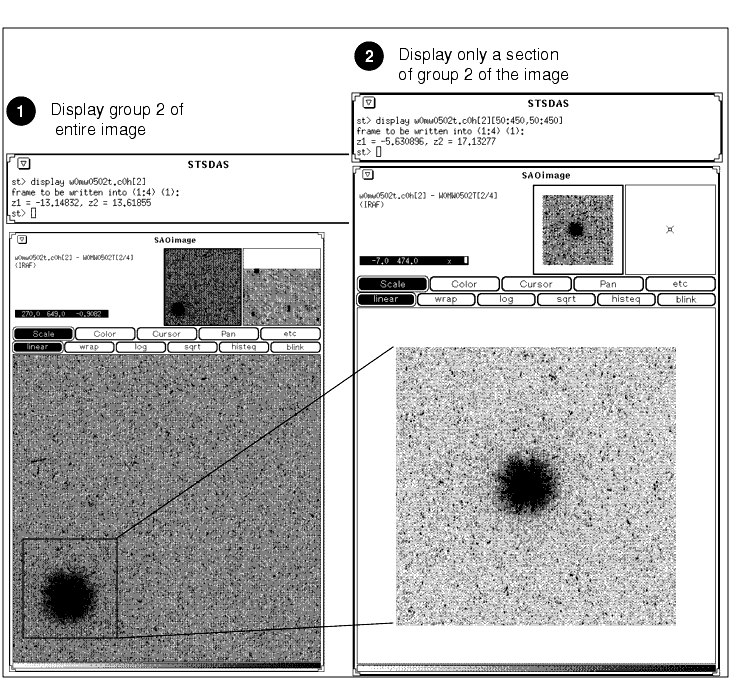
1 Typehelpdisplaywithin IRAF to obtain more information about these parameters.
|
Space Telescope Science Institute http://www.stsci.edu Voice: (410) 338-1082 help@stsci.edu |
| |
|
|
|
|