HST Data Handbook for WFPC2
 |
 |
 |
 |
 |
|
| HST Data Handbook for WFPC2 | ||||
|
3.3 Analyzing HST Images
This section describes methods for using STSDAS and IRAF to work with two-dimensional image data from HST. Subjects include:
- Relating your image to sky coordinates.
- Examining and manipulating your image.
- Working with STIS, ACS, and NICMOS imsets.
- Converting counts to fluxes.
3.3.1 Basic Astrometry
This section describes how to determine the orientation of an HST image and the RA and Dec of any pixel or source within it, including:
- Tasks that supply positional information about HST images.
- Methods for improving your absolute astrometric accuracy.
Positional Information
The header of every calibrated HST two-dimensional image contains a linear astrometric plate solution, written in terms of the standard FITS astrometry header keywords: CRPIX1, CRPIX2, CRVAL1, CRVAL2, and the CD matrix-CD1_1, CD1_2, CD2_1, and CD2_2. IRAF/STSDAS tasks can use this information to convert between pixel coordinates and RA and Dec. Two simple tasks that draw on these keywords to relate your image to sky coordinates are:
- disconlab: Displays your image with a superimposed RA and Dec grid. Simply open an SAOimage window and type, for example:
sd> disconlab n3tc01a5r_cal.fits[1]
- xy2rd: Translates x and y pixel coordinates to RA and Dec. (The task rd2xy inverts this operation.) SAOimage displays the current x,y pixel location of the cursor in the upper-left corner of the window. To find the RA and Dec of the current pixel, you supply these coordinates to xy2rd by typing
sd> xy2rd n3tc01a5r_cal.fits[1] x y
Table 3.1 lists some additional tasks that draw on the standard astrometry keywords.
Observers should be aware that these tasks do not correct for geometric distortion. Only FOC images currently undergo geometric correction during standard pipeline processing (the .c0h/.c0d and .c1h/.c1d FOC images have been geometrically corrected); STIS images will be geometrically corrected in the pipeline once suitable calibration files are in hand. If you need precise relative astrometry, you should use an instrument-specific task that accounts for image distortion, such as the metric task for WF/PC-1 and WFPC2 images.
Table 3.1: Additional IRAF and STSDAS Astrometry Tasks
compass Plot north and east arrows on an image. north Display the orientation of an image based on keywords. rimcursor Determine RA and Dec of a pixel in an image. wcscoords Use WCS1 to convert between IRAF coordinate systems. wcslab Produce sky projection grids for images.
1 World Coordinate System (WCS). Type "help specwcs" at the IRAF prompt for details.
Improving Astrometric Accuracy
Differential astrometry (measuring a position of one object relative to another in an image) is easy and relatively accurate for HST images, while absolute astrometry is more difficult, owing to uncertainties in the locations of the instrument apertures relative to the Optical Telescope Assembly (OTA or V1) axis and the inherent uncertainty in Guide Star positions. However, if you can determine an accurate position for any single star in your HST image, then your absolute astrometric accuracy will be limited only by the accuracy with which you know that star's location and the image orientation.
If there is a star on your image suitable for astrometry, you may wish to extract an image of the sky around this star from the Digitized Sky Survey and measure the position of that star using, for example, the GASP software (described in the
STSDAS User's Guide). These tools provide an absolute positional accuracy of approximately 0".7. Contact the Help Desk for assistance (send E-mail tohelp@stsci.edu).3.3.2 Examining and Manipulating Image Data
This section describes implot and imexamine, two basic IRAF tools for studying the characteristics of an image, and table 3.3 lists some useful IRAF/STSDAS tasks for manipulating images.
implot
The IRAF implot task (in the plot package) allows you to examine an image interactively by plotting data along a given line (x axis) or column (y axis). When you run the task, a large number of commands are available in addition to the usual cursor mode commands common to most IRAF plotting tasks. A complete listing of commands is found in the on-line help, but the most commonly used are listed in table 3.2. Figure 3.4 shows an example of how to use the implot task.
Table 3.2: Basic implot Commands

Display on-line help. 
Plot a line. 
Plot a column. 
Quit implot. 
Move down. 
Move up. 
Display coordinates and pixel values.
Figure 3.4: Plotting Image Data with implot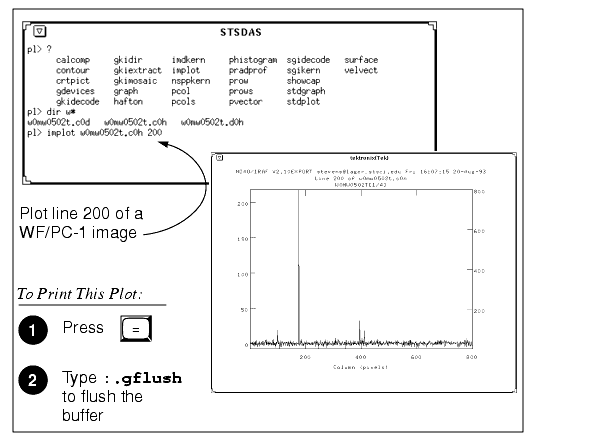
imexamine
The IRAF imexamine task (in the images.tv package) is a powerful task that integrates image display with various types of plotting capabilities. Commands can be passed to the task using the image display cursor and the graphics cursor. A complete description of the task and its usage are provided in the online help, available from within the IRAF environment by typing
Table 3.3: Image Manipulation Taskshelpimexamine.
boxcar images.imfilter Boxcar smooth a list of images gcombine stsdas.toolbox.imgtools Combine images using various algorithms and rejection schemes gcopy stsdas.toolbox.imgtools Copy GEIS multigroup images geomap images.immatch Compute a coordinate transformation geotran images.immatch Resample an image based on geomap output grlist stsdas.graphics.stplot List of file names of all groups of a GEIS image (to make @lists) gstatistics stsdas.toolbox.imgtools Compute image statistics1 imcalc stsdas.toolbox.imgtools Perform general arithmetic on GEIS imagesa imedit images.tv Fill in regions of an image by interpolation imexamine images.tv Examine images using display, plots, and text (see imexamine) implot plot Plot lines and columns of images (see implot) magnify images.imgeom Magnify an image msarith stsdas.toolbox.mstools Performs basic arithmetic on STIS and NICMOS imsets mscombine stsdas.toolbox.mstools Extension of gcombine for STIS and NICMOS imsets msstatistics stsdas.toolbox.mstools Extension of gstatistics for STIS and NICMOS imsets newcont stsdas.graphics.stplot Draw contours of two-dimensional data pixcoord stsdas.hst_calib.wfpc Compute pixel coordinates of stars in a GEIS image plcreate xray.ximages Create a pixel list from a region file (e.g., from SAOimage) rotate images.imgeom Rotate an image saodump stsdas.graphics.sdisplay Make image and colormap files from SAOimage display siaper stsdas.graphics.stplot Plot science instrument apertures of HST
1 Will process all groups of a multigroup GEIS file.
3.3.3 Working with STIS, ACS, and NICMOS Imsets
STIS, ACS, and NICMOS data files contain groups of images, called imsets, associated with each individual exposure. A STIS or ACS imset comprises SCI, ERR, and DQ images, which hold science, error, and data quality information. A NICMOS imset, in addition to its SCI, ERR, and DQ images, also contains TIME and SAMP images recording the integration time and number of samples corresponding to each pixel of the SCI image. See the STIS, ACS, and NICMOS Data Structures chapters for more details on imsets.
Here we describe several STSDAS tasks, located in the stsdas.toolbox.imgtools.mstools package, that have been designed to work with imsets as units and to deconstruct and rebuild them.
msarith
This tool is an extension of the IRAF task imarith to include error and data quality propagation. The msarith task supports the four basic arithmetic operations (+, -, *, /) and can operate on individual or multiple imsets. The input operands can be either files or numerical constants; the latter can appear with an associated error, which will propagate into the error array(s) of the output file. Table 3.4 below shows how this task operates on the SCI, ERR, and DQ images in a STIS, ACS, or NICMOS imset, as well as the additional TIME and SAMP images belonging to NICMOS imsets:
Table 3.4: Task msarith Operations
In table 3.4, the first operand (op1) is always a file, and the second operand (op2) can be either a constant or a file. The ERR arrays of the input files (
1 and
mscombine
This task allows you to run the STSDAS task gcombine on STIS, ACS, and NICMOS data files. It divides each imset into its basic components (SCI, ERR, and DQ, plus SAMP and TIME for NICMOS) to make them digestible for gcombine. The SCI extensions become the inputs proper to the underlying gcombine task, and the ERR extensions become the error maps. The DQ extensions are first combined with a user-specified Boolean mask allowing selective pixel masking and then fed into the data quality maps. If scaling by exposure time is requested, the exposure times of each imset are read from the header keyword PIXVALUE in the TIME extensions.
Once gcombine has finished, mscombine then reassembles the individual output images into imsets and outputs them as one STIS, ACS, or NICMOS data file. The output images and error maps from gcombine form the SCI and ERR extensions of the output imset. The DQ extension will be a combination of the masking operations and the rejection algorithms executed in gcombine. For NICMOS, the TIME extension will be the sum of the TIME values from the input files minus the rejected values, divided on a pixel-by-pixel basis by the number of valid pixels in the output image. The final TIME array will be consistent with the output SCI image (average or median of the science data). The SAMP extension for NICMOS is built from all the input SAMP values, minus the values discarded by masking or rejection.
msstatistics
This tool is an extension of gstatistics in the STSDAS package, which is in turn an extension of imstatistics. The main novelty is the inclusion of the error and data quality information included with STIS, ACS, and NICMOS images in computing statistical quantities. In addition to the standard statistical quantities (min, max, sum, mean, standard deviation, median, mode, skewness, kurtosis), two additional quantities have been added to take advantage of the error information: the weighted mean and the weighted variance of the pixel distribution. If xi is the value at the i-th pixel, with associated error

The data quality information carried by the STIS, ACS, or NICMOS file is used to reject pixels in the statistical computation. Users can supply additional masks to reject objects or regions from the science arrays.
mssplit and msjoin
The mssplit task extracts user-specified imsets from a STIS, ACS, or NICMOS data file and copies them into separate files. Each output file contains a single imset along with the primary header of the original file. You might find this task useful for reducing the size of a STIS, ACS, or NICMOS file containing many imsets or for performing analysis on a specific imset. The msjoin task inverts the operation of mssplit: it assembles separate imsets into a single data file.
There are additional tasks in this package for deleting and sorting imsets, as well as tasks for addressing a specific image class within an imset.
3.3.4 Photometry
- A list of IRAF/STSDAS tasks useful for determining source counts.
- Instructions on how to use header keyword information to convert HST counts to fluxes or magnitudes.
- A brief description of synphot, the STSDAS synthetic photometry package.
IRAF and STSDAS Photometry Tasks
The following are some useful IRAF/STSDAS packages and tasks for performing photometry on HST images:
- apphot: aperture photometry package.
- daophot: stellar photometry package useful for crowded fields.
- isophote: package for fitting elliptical isophotes.
- imexamine: performs simple photometry measurements.
- imstat: computes image pixel statistics.
- imcnts: sums counts over a specified region, subtracting background.
- plcreate: creates pixel masks.
Consult the online help for more details on these tasks and packages. The document "Photometry using IRAF" by Lisa A. Wells, provides a general guide to performing photometry with IRAF; it is available through the IRAF web page:
http://iraf.noao.edu/docs/photom.htmlConverting Counts to Flux or Magnitude
All calibrated HST images record signal in units of counts or Data Numbers (DN)1-NICMOS data is DN s-1. The pipeline calibration tasks do not alter the units of the pixels in the image. Instead they calculate and write the inverse sensitivity conversion factor (PHOTFLAM) and the ST magnitude scale zero point (PHOTZPT) into header keywords in the calibrated data. WF/PC-1 and WFPC2 observers should note that the four chips are calibrated individually, so these photometry keywords belong to the group parameters for each chip.
For all instruments other than NICMOS, PHOTFLAM is defined to be the mean flux density F
in units of erg cm-2 s-1 Å-1 that produces 1 count per second in the HST observing mode (PHOTMODE) used for the observation. If the F
To convert from counts or DN to flux in units of erg cm-2 s-1 Å-1, multiply the total number of counts by the value of the PHOTFLAM header keyword and divide by the value of the EXPTIME keyword (exposure time). You can use the STSDAS task imcalc to convert an entire image from counts to flux units. For example, to create a flux-calibrated output image
outimg.fitsfrom an input imageinimg.fits[1]with header keywords PHOTFLAM = 2.5E-18 and EXPTIME = 1000.0, you could type:
st> imcalc inimg.fits[1] outimg.fits "im1*2.5E-18/1000.0"
Calibrated NICMOS data are in units of DN s-1, so the PHOTFLAM values in their headers are in units of erg cm-2 Å-1. You can simply multiply these images by the value of PHOTFLAM to obtain fluxes in units of erg cm-2 s-1 Å-1. NICMOS headers also contain the keyword PHOTFNU in units of Jy s. Multiplying your image by the PHOTFNU value will therefore yield fluxes in Janskys.
If your HST image contains a source whose flux you know from ground based measurements, you may choose to determine the final photometry of your HST image from the counts observed for this source.
To convert a measured flux F, in units of erg cm-2 s-1 Å-1, to an ST magnitude, plug it into the following equation:
m = -2.5 x log10 (F) + PHOTZPT
where the value of the PHOTZPT keyword is the zero point of the ST magnitude scale. The zero point of the ST magnitude system has always been and probably always will be equal to -21.10, a value chosen so that Vega has an ST magnitude of zero for the Johnson V passband (see Koornneef et al., 1986; Horne, 1988; and the
Synphot Users Guide).synphot
The STSDAS synthetic photometry package, called synphot, can simulate HST observations of astronomical targets with known spectra. It contains throughput curves of all HST optical components, such as mirrors, filters, gratings, apertures, and detectors, and can generate passband shapes for any combination of these elements. It can also generate synthetic spectra of many different types, including stellar, blackbody, power-law and H II region spectra, and can convolve these spectra with the throughputs of HST's instruments. You can therefore use it to compare results in many different bands, to cross-calibrate one instrument with another, or to relate your observations to theoretical models.
One useful application of synphot is to recalculate the value of PHOTFLAM for a given observation using the latest calibration files. For example, to recalculate PHOTFLAM for an FOC observation, you could use the calcphot task in synphot as follows:
sy> calcphot foc,f/96,x96zlrg,f501n `unit(1,flam)' counts
The first argument to calcphot gives the instrument and its configuration, in this case the FOC f/96 camera in full zoomed format with the F501 filter. (See the obsmode task in synphot and the Synphot User's Guide for help with these observation-mode keywords.) The second tells the task to model a flat F
resultparameter will contain the count rate expected from the FOC, given this configuration and spectrum. The PHOTFLAM keyword, defined to be the flux required to produce one count per second, simply equals the reciprocal of this value, which you can print to the screen by typing=1./calcphot.resultat the IRAF prompt.Please see the
1 Except for 2-D rectified STIS images, which are in units of ISynphot User's Guidefor more details on this package, and see appendix A for information on getting the synphot dataset, which is not included with STSDAS.
|
Space Telescope Science Institute http://www.stsci.edu Voice: (410) 338-1082 help@stsci.edu |
| |
|
|
|
|